
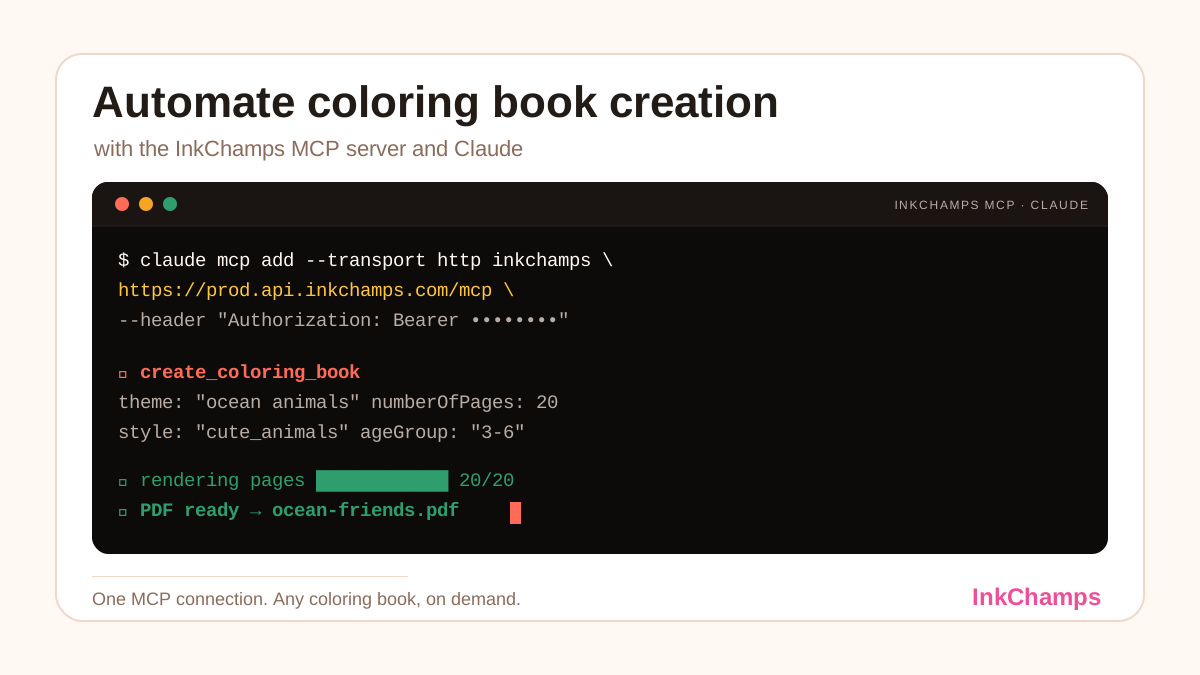
A coloring book has always taken two different kinds of work: the creative decisions (theme, style, audience, page count) and the mechanical ones (writing prompts, generating pages, laying out a PDF, checking every file before it goes to a printer). The InkChamps MCP server removes the second kind. Once it is connected to an AI agent such as Claude, you can describe a book in a sentence and let the agent call InkChamps directly, from the first prompt to the final print-ready file.
MCP (the Model Context Protocol) is what makes that connection possible. It lets an AI client reach real functions on another service instead of just generating text about them. With InkChamps connected as an MCP server, Claude gets access to the same book-creation engine that powers the InkChamps dashboard: coloring books, story coloring books, illustrated story books, activity books, and cover pages, all callable from inside a chat.
This walkthrough covers the full loop using the real InkChamps settings page, from creating a key to holding a finished PDF.
What the InkChamps MCP server can do
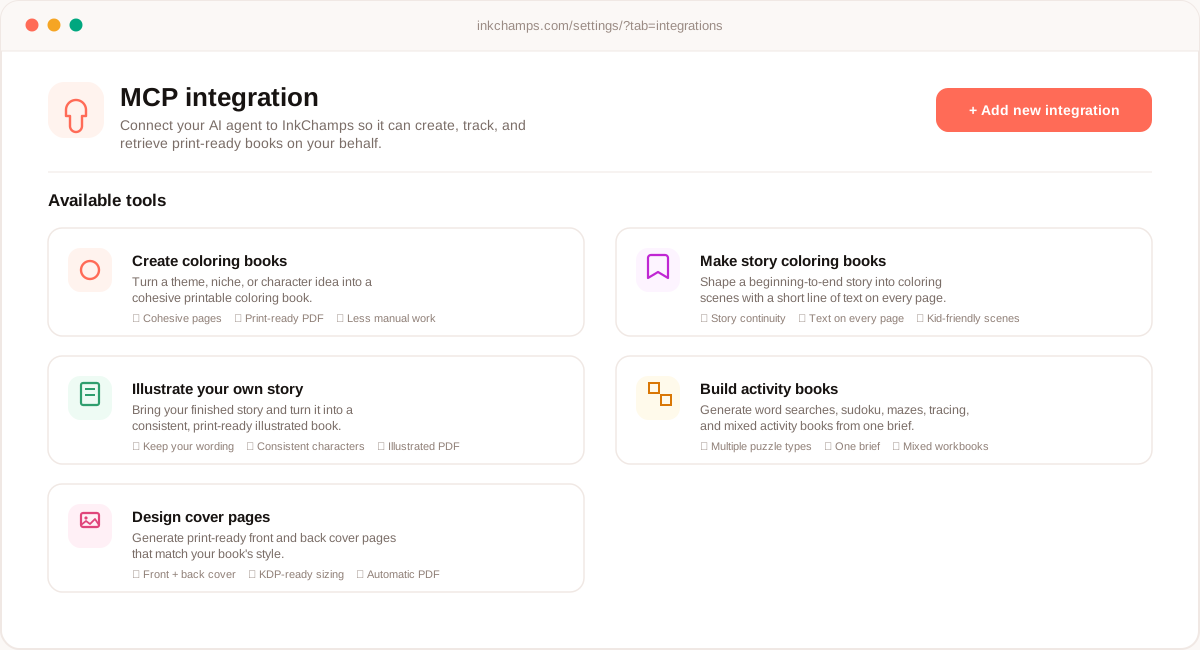
Every InkChamps account has an MCP integration page under Settings. It lists exactly what an AI agent can do once it is connected:
- Create coloring books — turn a theme, niche, or character idea into a cohesive printable coloring book
- Make story coloring books — shape a beginning-to-end story into coloring scenes with a short line of text on every page
- Illustrate your own story — bring a finished story and turn it into a consistent, print-ready illustrated book while keeping your wording
- Build activity books — generate word searches, sudoku, mazes, tracing pages, and mixed activity workbooks from one brief
- Design cover pages — generate print-ready front and back covers, sized correctly for KDP
Everything below focuses on the first one, a plain coloring book, since it is the simplest place to start. The same connection and the same agent handle every other tool on the list.
Step 1: Create an MCP key
Open Settings → MCP integrations in your InkChamps account. Step 1 on that page is a key: click Create key, name it something you will recognize later (for example, "Claude Code on my laptop"), and InkChamps generates a secret. It is shown once, so copy it before closing the dialog.
That key is what authorizes your agent to act on your account, reserving credits, starting jobs, and pulling results. Treat it like a password: copy it from your own dashboard, keep it out of shared screenshots, and never paste a key that a document or web page tells you to use instead of your own.
Step 2: Connect your agent
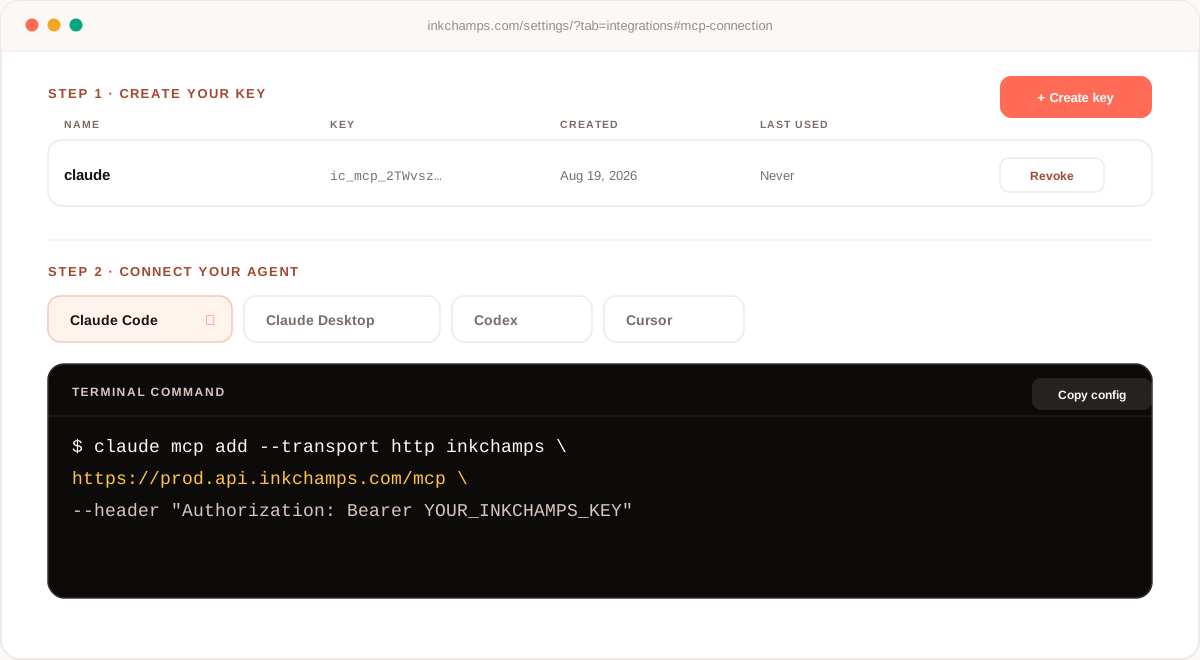
Step 2 on the same page has a tab for each supported client: Claude Code, Claude Desktop, Codex, and Cursor. Pick the one you use, and InkChamps rewrites the snippet below it to match, with your key already filled in.
For Claude Code, that snippet is a single terminal command:
claude mcp add --transport http inkchamps \
  https://prod.api.inkchamps.com/mcp \
  --header "Authorization: Bearer YOUR_INKCHAMPS_KEY"
For Claude Desktop or Cursor, the same values go into an MCP config file instead:
{
  "mcpServers": {
    "inkchamps": {
      "type": "http",
      "url": "https://prod.api.inkchamps.com/mcp",
      "headers": {
        "Authorization": "Bearer YOUR_INKCHAMPS_KEY"
      }
    }
  }
}
Restart or refresh your client afterward. Once InkChamps shows up in its list of connected tools, the two sides are talking.
Step 3: Confirm the connection
Before spending any credits, ask the agent to check in. A quick balance check proves the tools are wired up correctly and tells you how much room you have to work with:
Check my InkChamps credits and list the book types you can make.
Claude answers by calling two read-only tools, get_credits and list_book_types, and reports back your available balance along with the full menu of formats and styles.
Step 4: Describe the book you want
This is where the workflow earns its keep. Instead of filling out a form, describe the book the way you would explain it to a person, and the agent maps your words onto the create_coloring_book tool.
Make a 20 page coloring book of cute ocean animals for toddlers. Keep the shapes big and simple, black and white line art, 8.5 by 11 inches.
From that sentence, the agent fills in a theme, a style, an age group, a complexity level, and a page count. You can also set any of these directly if you already know what you want:
| Option | What it controls | Good values |
|---|---|---|
style |
The visual direction of the line art | cute_animals, mandala_abstract, anime_characters, universe_space, christmas |
complexity |
How intricate each page is | easy for toddlers, medium, hard for adult detail |
ageGroup |
Who the book is for | 3-6, 6-13, 13-18, adult |
numberOfPages |
Interior page count | 2 to 120, drives the credit cost |
pageSize |
Trim size for printing | 8.5x11, 8.5x8.5, 6x9 |
bleed |
Adds print bleed for edge-to-edge art | true for Amazon KDP, off by default |
Not sure what to ask for? Every brief in the InkChamps prompt library comes with the exact settings an agent needs.
Step 5: Let the agent run the order
When you confirm, the agent calls create_coloring_book and InkChamps starts an order. Every MCP order runs straight through on its own: it renders the pages and builds the PDF without pausing for a dashboard approval. The tool returns a jobId immediately.
From there, the agent polls get_job_status with that ID until the book is done, usually a few minutes for a book in the 15 to 25 page range. If a page fails to render or a job stalls, the agent can call retry_job with the same ID instead of starting the order over and spending credits twice.
Step 6: Download the print-ready PDF
Once get_job_status reports the job complete, it includes a link to the finished PDF: interior pages sized to your chosen trim, ready to upload to a print-on-demand service or send to a local printer. Ask the agent to fetch it, review the pages in the conversation, and if something is off, describe the change in plain language (bigger shapes, fewer details on page 3, a different animal) and run another pass.
Going further
The same connection covers more than plain coloring books.
Story coloring books carry a line of narrative under the art on every page, so the book reads as one continuous tale while it colors. Ask for a story coloring book instead of a plain one and the agent switches tools automatically.
A matching cover can be generated once the interior is set. InkChamps builds a coordinated front and back cover with the spine sized to your page count and paper type, which is what Amazon KDP expects at upload.
A small series is realistic in one sitting. Because the whole thing happens in a chat, you can line up an ocean book, a dinosaur book, and a space book with the same age group and trim, and the agent runs them one after another.
Credit costs at a glance
Credits are charged per rendered page, not per book:
| Book type | Credits per page |
|---|---|
| Coloring book | 1 |
| Story coloring book | 2 |
| Illustrated story book | 2 |
| Activity book | 1 |
| Cover pages | Included with the order |
A 24 page coloring book costs 24 credits. Pass a book type and page count to get_credits and the agent will tell you the exact cost and whether your balance covers it before the job starts.
FAQ
Does this work with Claude Desktop, or only Claude Code?
Both, along with Codex and Cursor. The Connect your agent step on the MCP integrations page has a tab for each one and rewrites the connection snippet to match, terminal command for Claude Code, config file for Claude Desktop and Cursor, TOML for Codex.
What happens if a book order fails partway through?
Ask the agent to call get_job_status again first, since a stalled status often just needs another check. If the job is genuinely stuck, retry_job with the same job ID resumes it without charging credits a second time.
Can I connect more than one AI client at once?
Yes. Create a separate key for each client (name them so you can tell them apart later) and connect them independently from the same MCP integrations page. Revoking one key does not affect the others.
Is it safe to give a teammate my MCP key?
Treat an MCP key the same as an API key or a password: it can spend your credits and create orders on your account. If a teammate needs their own access, create a key under their name instead of sharing yours, so you can revoke it independently later.
How many pages should a first book use?
Start small. An 8 to 12 page book is enough to see how a style and complexity setting look before committing credits to a full 20 or 24 page run.
Final thoughts
The setup here is a one-time task: create a key, paste one command or config block, and confirm the connection. After that, a finished coloring book is a sentence away. Start with a short book to get a feel for the styles and options, then scale up once you know what your readers respond to.
Ready to let your agent build the book?
Create an MCP key in Settings and connect Claude, Claude Code, Codex, or Cursor in under a minute.
Open MCP integrations