
Creating a cover page for a coloring book is not difficult. Creating a cover that Amazon KDP accepts is more precise. The trim size, page count, spine width, bleed, safe area, image resolution, and final PDF dimensions all need to agree.
That is why the cover should be treated as part of the publishing workflow—not as a last-minute front-cover image. In this guide, I’ll walk through a practical example using a Halloween coloring book and show how to create, download, and validate a KDP-ready cover.
Important: The screenshots below show an InkChamps workflow. The technical requirements come from your chosen KDP print setup, so always check the final file against your book’s exact specifications.
What is a KDP cover page?
For a paperback, KDP expects one complete cover file containing the back cover, spine, and front cover in a single PDF. It is not just the front cover image.
The final cover size depends on:
- the trim size;
- the final interior page count;
- the paper and ink type;
- the spine width; and
- the required 0.125-inch bleed on every cover edge.
The spine width changes when the page count or paper type changes, so avoid copying the dimensions from another book. Use the official KDP cover calculator and template generator, or use a cover tool that calculates the same values from your book settings.
The example: a 24-page Halloween coloring book
Before creating the cover, finish the interior. In this example, the book is a friendly Halloween coloring book with 24 content pages. The pages use black line art and are intended for one-sided printing so children can use markers without coloring through to another illustration.
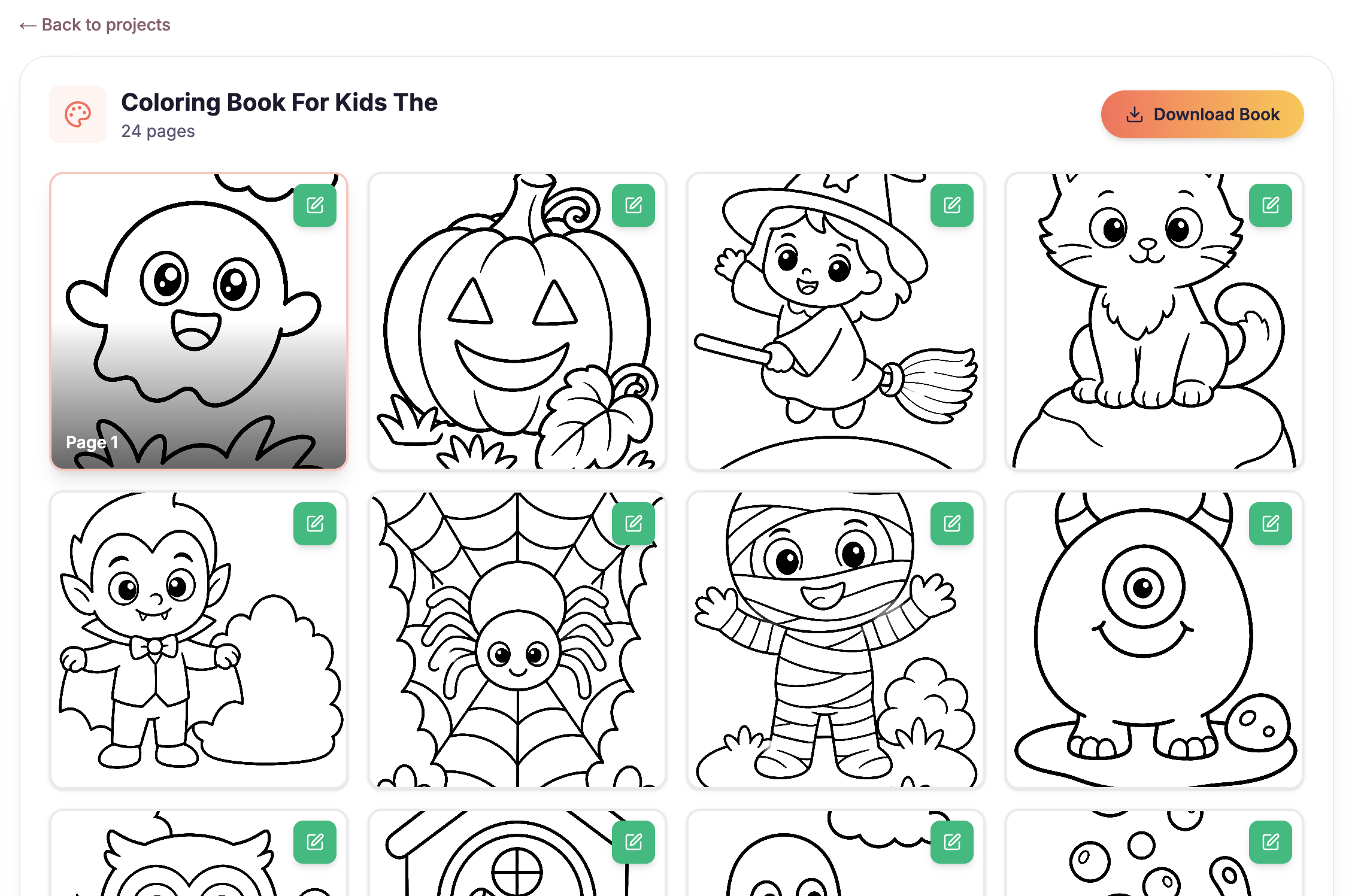
The interior pages come first. The final page setup drives the cover dimensions and spine width.
For this example, the cover settings are:
| Setting | Example value |
|---|---|
| Trim size | 8.5 × 11 inches |
| Interior | Black & White, White Paper |
| Content pages | 24 |
| Physical pages used for the cover calculation | 48 |
| Print option | Single-sided |
| Spine width | 0.108 inches |
| Full cover size | 17.358 × 11.25 inches |
| Resolution | 300 DPI |
The 24-to-48 distinction matters. The example tool treats 24 one-sided coloring-page inputs as 48 physical pages for the spine calculation. If your interior PDF already contains 48 pages, enter the final manuscript page count according to your KDP setup rather than doubling it again.
Step 1: Finish the coloring pages first
Do not start with the cover. First, decide the trim size, finish the interior, and confirm the page count. A cover made for 24 pages will not be correct if you later add a title page, copyright page, or extra coloring pages.
Review the interior for:
- consistent page dimensions;
- clean black outlines and readable details;
- missing, duplicated, or blank pages;
- artwork that is too close to the trim edge; and
- a theme that matches the cover promise.
The Halloween example uses friendly pumpkins, costumes, characters, leaves, and other playful seasonal elements. The cover should communicate the same tone rather than promising a darker or more advanced book.
Step 2: Open the cover-page workflow
Once the interior is ready, open the InkChamps KDP coloring book creator. Select Book Cover or Create Cover Pages, then describe the book’s topic, audience, and visual direction.
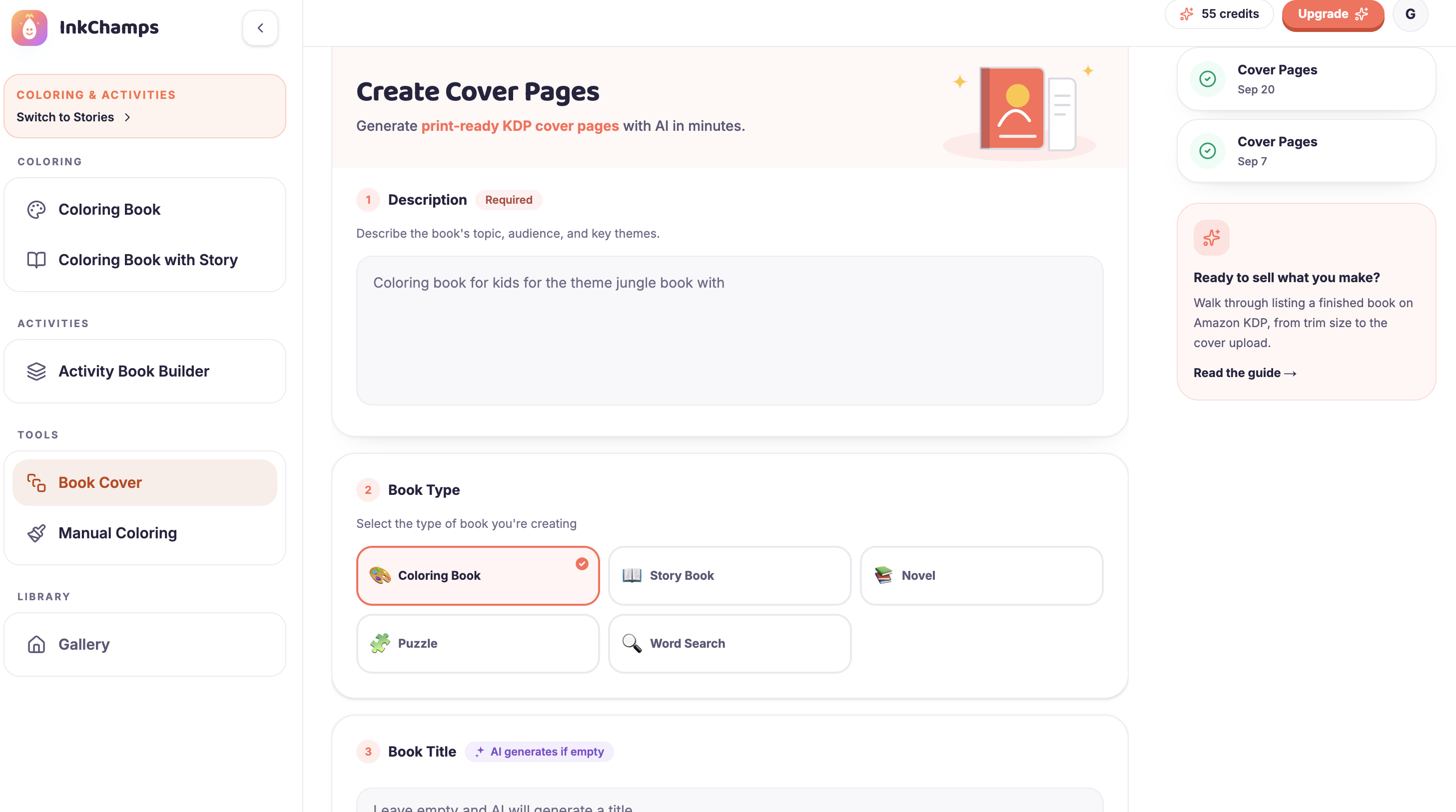
The cover workflow starts with the book description and type. A specific description gives the cover a clearer creative direction.
A useful description might be:
Create a friendly Halloween coloring book cover for children ages 4–8.
Use smiling pumpkins, a cute black cat, autumn leaves, stars, and warm
orange and purple colors. Keep the style playful and welcoming, with a
clear title area and no frightening or graphic imagery.
Then check the details that should match the KDP setup:
- Choose Coloring Book as the book type.
- Enter the exact title and author or pen name you plan to use on KDP.
- Select the trim size, interior type, paper, and page count.
- Keep the cover style aligned with the interior pages.
- Generate the cover pages and review both the front and back before downloading.
The cover generator can calculate the wraparound layout from these inputs. That saves time, but it does not remove the need to review the title, artwork, barcode area, and final file yourself.
Step 3: Review and download the generated cover
After generation, review the result in the library before downloading. Check the front cover at thumbnail size, then inspect the back cover and spine at full size.
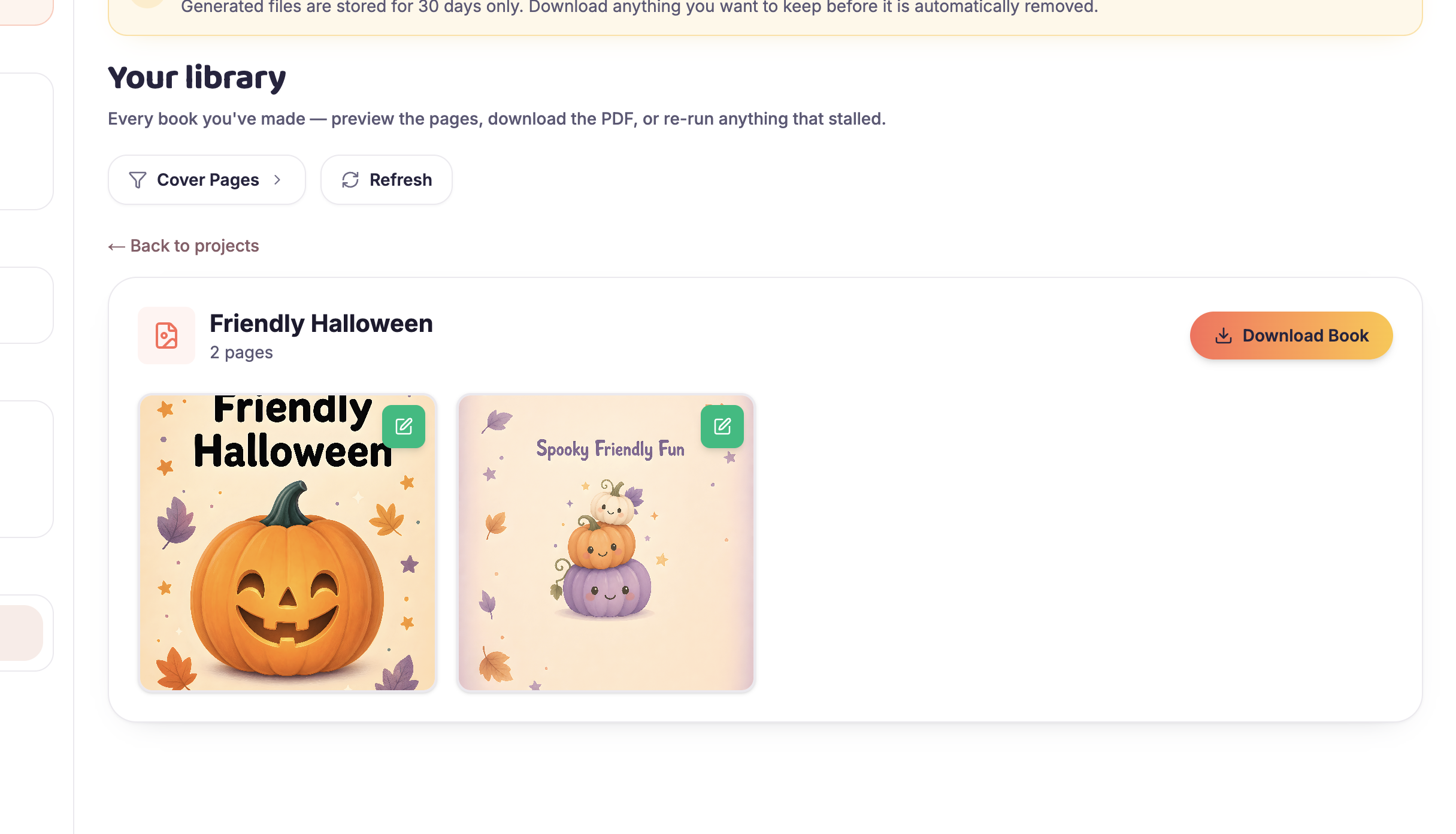
The generated cover pages appear in the library so they can be previewed or downloaded.
Look for the practical details that are easy to miss:
- Is the title readable when the cover is small?
- Does the cover clearly identify the audience and theme?
- Are the most important characters and words inside the safe area?
- Is the back cover clear enough for a short description or barcode?
- Does the title and author name match the KDP book details exactly?
- Is spine text being used only when the book has enough pages for it?
KDP says spine text is only supported for books with at least 79 pages. The example has 48 physical pages, so it is safer to leave the spine free of text and let the design continue across it.
Step 4: Validate the cover before uploading to KDP
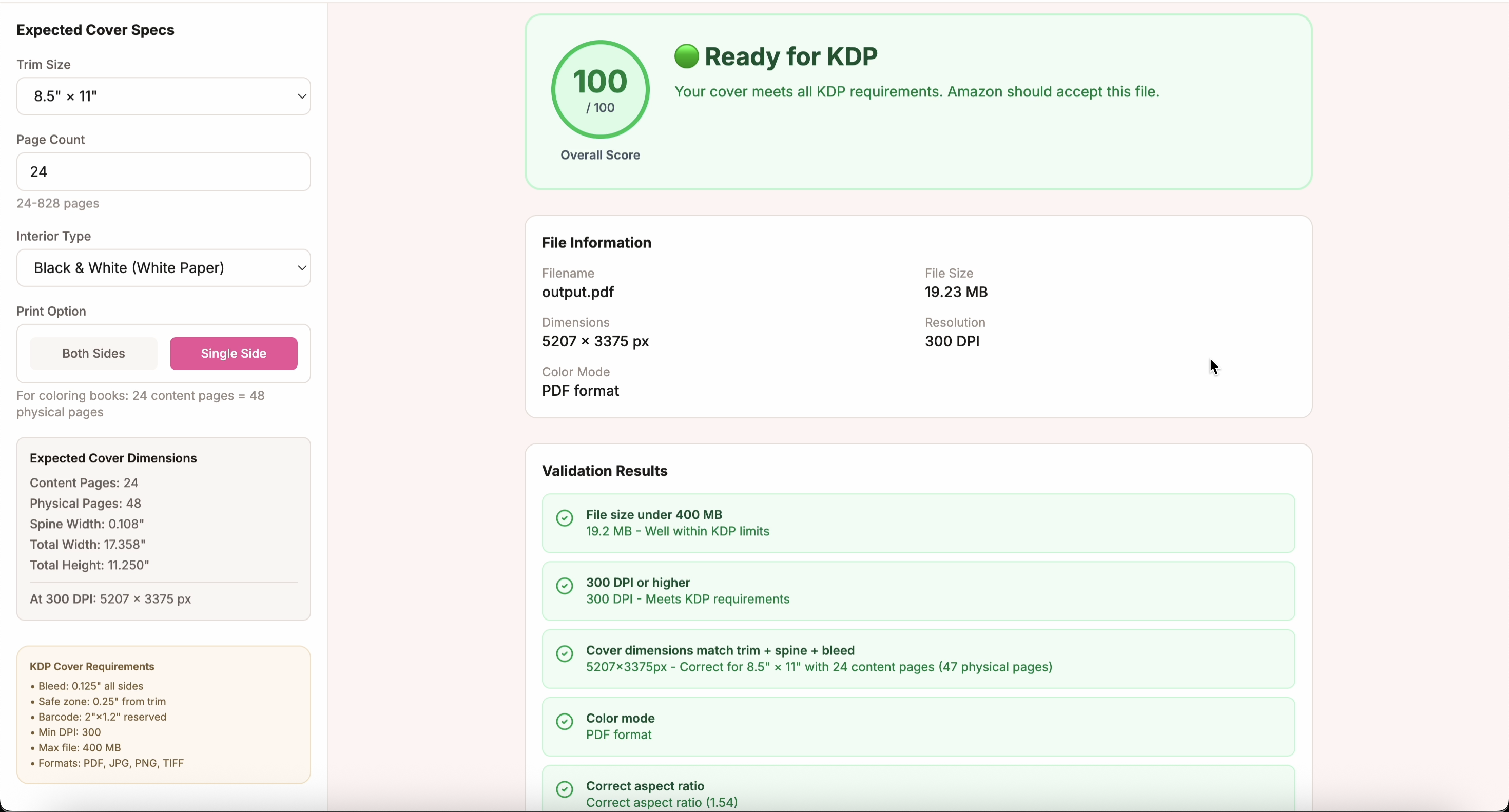
Before uploading, run the downloaded file through the free InkChamps KDP Cover Validator. Enter the same trim size, page count, interior type, and print option used to generate the cover.
The validator checks the file against the selected KDP specifications and reports a 100/100 “Ready for KDP” result for this example.
For the example shown above, the validator reports:
- 5,207 × 3,375 pixels;
- 300 DPI;
- 19.23 MB file size;
- 0.108-inch spine width;
- 17.358-inch total cover width; and
- 11.250-inch total cover height.
Those values are consistent with an 8.5 × 11-inch cover with 0.125-inch bleed at the top and bottom, a 0.108-inch spine, and a 48-page black-and-white white-paper interior. A green result is useful evidence that the file is dimensionally prepared, but you should still open KDP Print Previewer and inspect the full book before publishing.
KDP cover requirements to check
Amazon’s paperback cover requirements are strict because a small sizing error can move artwork or text across the trim line.
| Requirement | What to check |
|---|---|
| Single cover file | The PDF contains the back cover, spine, and front cover as one continuous file. |
| Bleed | Add 0.125 inches to the top, bottom, and outside edges. Backgrounds intended to reach the edge must extend into the bleed. |
| Safe area | Keep important text and artwork away from the trim and spine. KDP recommends at least 0.25 inches from the outside cover edge for content that should not be trimmed. |
| Resolution | Use at least 300 DPI for cover images. |
| File preparation | Flatten layers and transparency, embed fonts, remove crop marks and template text, and do not upload a locked or encrypted PDF. |
| Barcode area | Leave the lower back-cover barcode area clear unless you are deliberately supplying your own barcode. |
| File size | KDP accepts files up to 650 MB and recommends keeping cover files around 40 MB or less when possible. |
The cover bleed is separate from the interior bleed choice. KDP requires bleed on paperback covers, while the interior may use bleed or no bleed depending on whether its artwork reaches the page edge.
Frequently asked questions
Can InkChamps create a KDP cover?
Yes. InkChamps’s cover-page workflow uses your trim size, interior type, paper, and page count to prepare the cover layout. Review the generated front, spine, and back cover, download the single PDF, and validate it before uploading to KDP.
Does the cover use the same dimensions as an interior page?
No. The cover is wider because it includes the back cover, spine, front cover, and bleed. Its width depends on the page count and paper type.
Is a cover validator enough to guarantee KDP approval?
No validator can replace KDP’s own Print Previewer or a physical proof. A validator catches common technical problems early; KDP’s preview and your own visual review catch placement, text, barcode, and print-quality issues.
How do I calculate KDP spine width?
Spine width is based on the final page count and paper type. For the example’s 48 white-paper pages, KDP’s black-and-white white-paper factor is 0.002252 inches per page: 48 × 0.002252 = approximately 0.108 inches. Using the calculator is safer than doing the math manually.
Final thoughts
The reliable way to create a cover page for a KDP coloring book is to lock the interior specifications first, generate the cover from those settings, and validate the exported file before uploading it. In the Halloween example, a 24-content-page, single-sided coloring book becomes a 48-page cover calculation with an 8.5 × 11-inch trim, a 0.108-inch spine, and a 17.358 × 11.25-inch full cover.
The tool can make the setup faster, but the publishing decisions still matter: choose the right trim size, protect the safe area, keep the cover consistent with the interior, and inspect the final file in KDP before you publish.
For the official rules, review Amazon’s Create a Paperback Cover guide and Print Cover Calculator and Templates.
Check your KDP cover before uploading
Use the correct trim size, page count, bleed, and spine width, then run the exported cover through a final validation check.
Open the free cover validator