
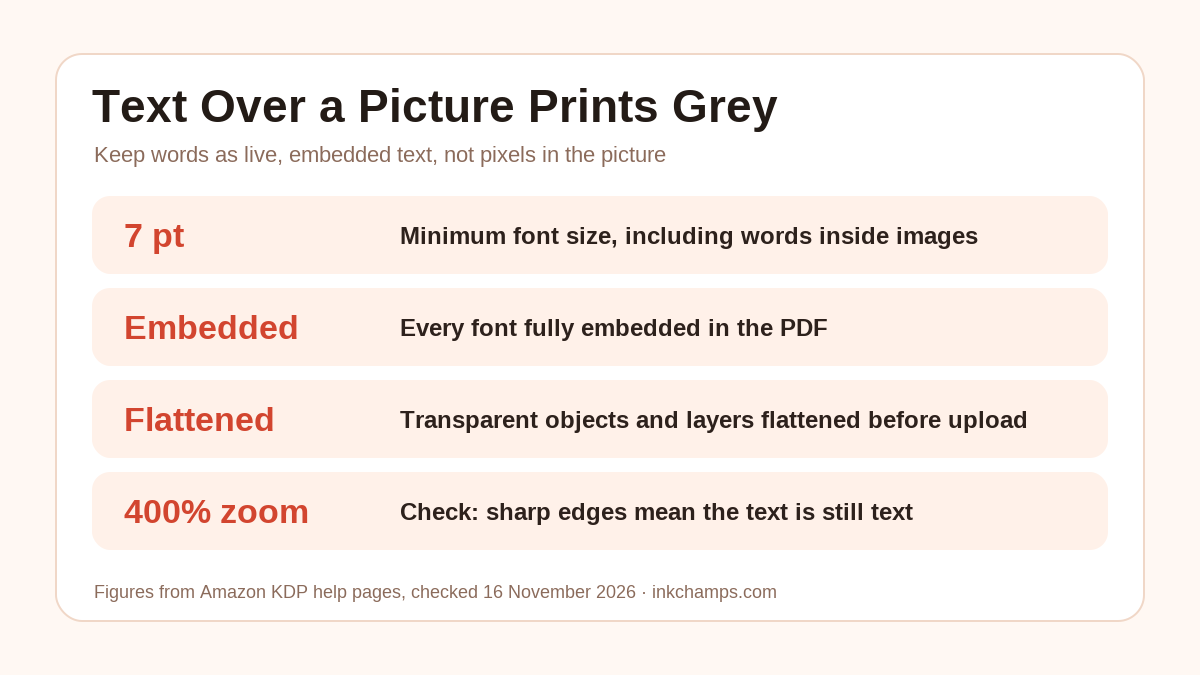
Black text over a picture usually prints grey or fuzzy because it is no longer text. Somewhere between your design tool and the PDF, the words were merged into the picture and became pixels, often at a lower resolution than the page. Pixel text has soft grey edges, and on paper those edges read as grey, blurry type. Keep the words as live text on their own layer above the picture, embed the fonts, use at least 7 pt, and check the exported PDF at 400% before you upload.
"Getting black text to remain black" is a recurring KDP Community thread for picture books. Here is what KDP's help pages require, where text gets turned into pixels, and how to tell which kind of text your PDF has.
What KDP requires for text
- At least 7 pt, and that includes words inside images.
- Every font fully embedded in the interior and cover files.
- Transparent objects and layers flattened before you publish.
- Don't mix color spaces in one file; KDP warns it can cause color variance in print.
KDP's help pages don't talk about "rich black" or say exactly how text over images is printed, so this guide doesn't either. The fixes below are about getting sharp, real text into the PDF, which is what you control.
Where text gets turned into pixels
- The words were part of the picture from the start. If an AI image tool or an illustrator lettered the words into the artwork, they are pixels, and only as sharp as the image. That can look fine at 300 DPI and bold sizes, and grey at small sizes.
- The page was exported as an image. Exporting PNG or JPEG pages and then combining them into a PDF turns every word into pixels. So does "print to PDF" from some apps.
- Flattening merged the text into the picture. Flattening transparency is required, but some apps rasterize text that overlaps a transparent or blended object while they do it. Text sitting on a picture with a shadow, glow or soft edge is the usual case.
- The picture was low resolution, and the words were on it. Any text inside an enlarged image is as blurry as the image.
How to tell what your PDF has
Open the PDF and zoom to 400% on a line of text over a picture.
- Sharp edges at any zoom: live text. It will print crisp.
- Jagged or blurry edges, a grey fringe: pixel text. It will print soft and greyish.
- Can you select the words with the text tool? If not, they are part of an image.
The fixes
- Put the words on their own text layer, above the picture, in your layout app (Canva, Affinity Publisher, InDesign, Word). Don't merge them into the picture.
- Export a print PDF directly, not page images. In Canva, use the print PDF option.
- Avoid effects on text over pictures, like shadows, glows and transparency, or check after flattening that the text is still selectable.
- Use solid black for black text, not dark grey from a color picker.
- Keep words 7 pt or larger. For picture books, much larger. Young readers need it, and so does print.
- Embed fonts. Most export dialogs have the option; KDP's previewer flags missing fonts.
- Give the words a calm area. Text over a busy, dark or detailed part of a picture is hard to read even when it prints perfectly.
How InkChamps sets story text
In InkChamps picture books, the Two-page picture and Text page + picture layouts set each page's words as type in the PDF, in a calm band or on their own page, not as pixels in the illustration. The text stays selectable and sharp. Before upload, the KDP interior checker confirms every font in the file is embedded.
Sources
From Amazon KDP help pages, checked on 16 November 2026:
- Paperback Submission Guidelines: 7 pt minimum font size, flatten transparent objects and layers
- Fix Paperback and Hardcover Formatting Issues: embed all fonts; text in images must be legible
- Create a Paperback Cover: mixing color spaces can cause color variance
KDP updates these pages without notice, so check them before you rely on a figure.
Frequently asked questions
- Why does black text print grey on KDP?
- Most often because it was merged into the picture and became pixels. Pixel text has soft grey edges, which print as grey, blurry type. Live text in the PDF prints sharp.
- What is KDP's minimum font size?
- 7 points, and that includes words inside images.
- How can I tell if the text in my PDF is real text?
- Zoom to 400%. Live text stays sharp at any zoom and can be selected with the text tool. Jagged or blurry edges mean the words are part of an image.
- Do fonts need to be embedded for KDP?
- Yes. KDP asks for every font to be fully embedded in both the interior and cover files.
Make a picture book with typeset words
InkChamps picture book layouts set each page's words as type in the PDF, sized for your reader's age, at your KDP trim size.
Open the children's book creator